
Discovering Data and Models in HydroShare
The Discover page allows users to search, filter, and browse public resources in HydroShare. Access the Discover page at: https://www.hydroshare.org/discover
1. Overview of the Discover Page
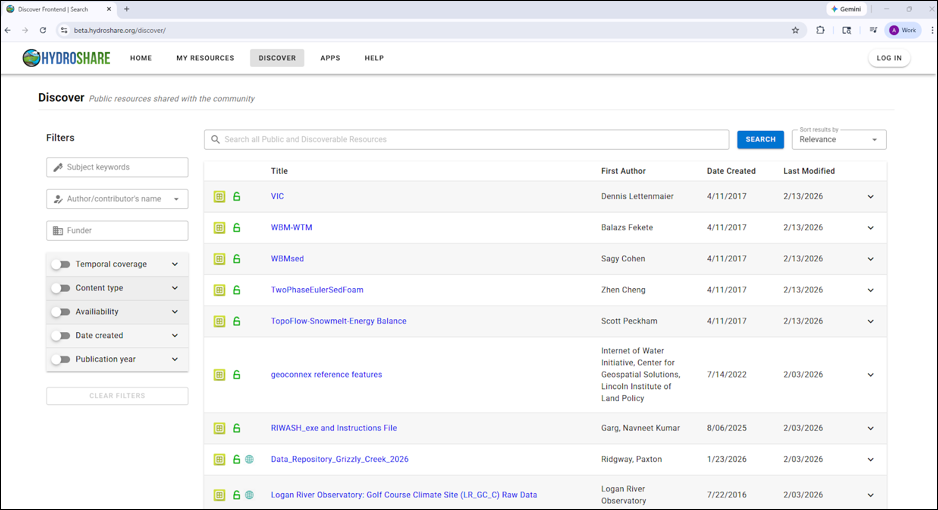
When you first navigate to the Discover page above you will see the following:
- A search bar at the top
- A results table of HydroShare resources
- A filter panel on the left
- A dropdown menu for sorting the results table
By default, the page displays a feed of recent resources. You can begin refining results immediately using the search bar or filters.
2. Viewing a resource
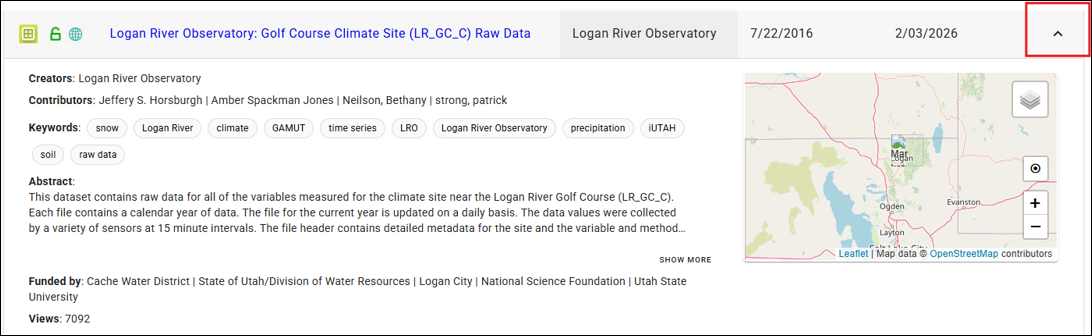
To navigate to the resource landing page, you can click the resource title directly. To first preview the resource metadata, you can expand a resource row by clicking the dropdown on the right side.
3. Using the Main Search Bar
The main search bar allows you to search across multiple metadata fields in a HydroShare resource at the same time, including the following:
- Title
- Abstract
- Authors
- Contributors
- Keywords
3.1 Autocomplete and Search Suggestions
As you type, the search bar provides autocomplete suggestions, matching resource recommendations and previously searched terms. Suggestions update dynamically with each character entered with matched text in results highlighted. You can either click a suggestion to execute the search or press enter to search your typed term directly.
3.2. Understanding Search Results
Search results are ranked by relevance by default. Relevance is determined by how closely a resource’s metadata matches your search terms. Resources with multiple matching fields (e.g., title, abstract, keywords) appear higher in the results.
4. Using Sorting Features
You can change how results are ordered using the sort dropdown or by clicking column headers.
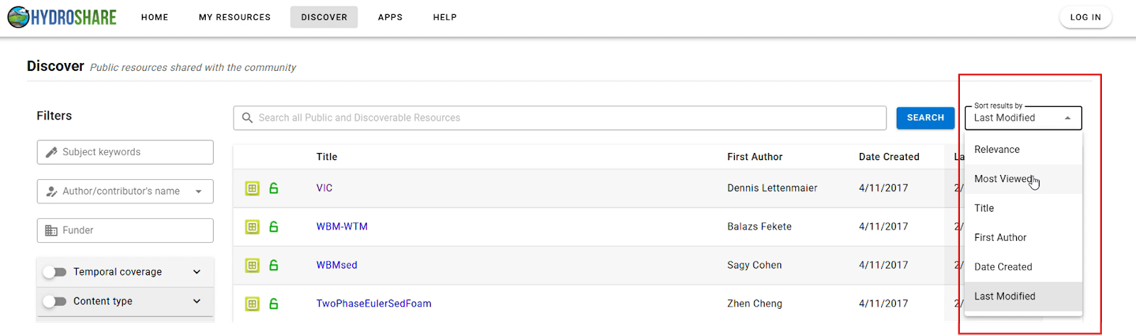
Clicking a column header cycles through ascending and descending order. Note that when sorting by a column (e.g., Author), the sort applies only to the subset of results that meet the relevance threshold for your search.
5. Using Filters
The left panel provides advanced filtering options. Filters can be used individually or combined. When a filter is applied, a badge appears above results and the filter section shows as active, such as the filter below for published resources:
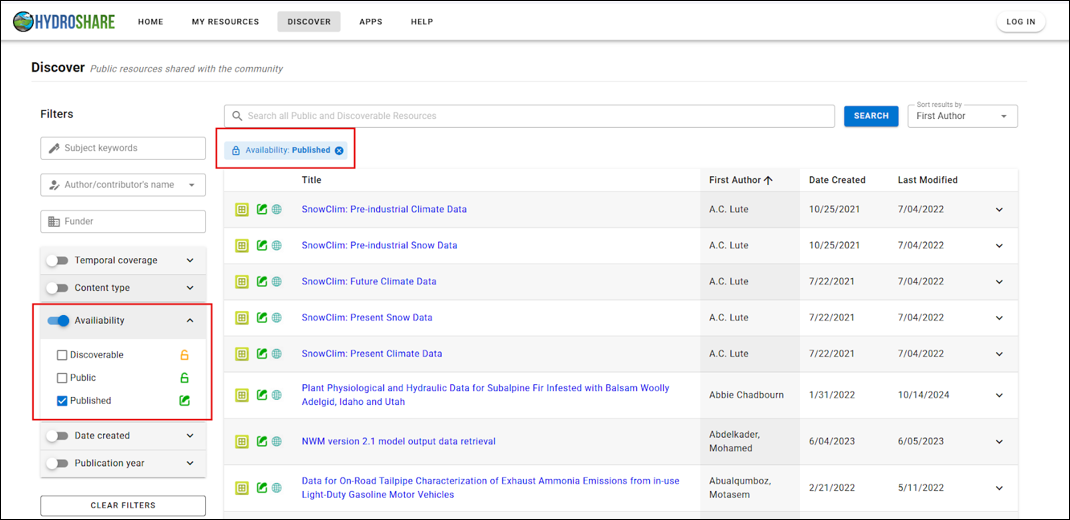
You can filter resources by the following (note the that the filters can be removed via toggle or “X” icon, and the Clear All Filters button resets all filters at once):
- Subject Keywords – Search for resources tagged with specific keywords. Autocomplete suggestions help you select existing keywords used in HydroShare.
- Author / Contributor – Limit results to resources created or contributed to by a specific individual. Autocomplete assists in identifying matching names, even when variations (e.g., “Jeff” and “Jeffrey”) exist.
- Funder – Find resources associated with a specific funding agency (e.g., National Science Foundation).
Content Type – Filter by the types of content contained within a resource, such as collections or geographic raster data. Multiple content types may be selected at once. - Temporal Coverage – Restrict results based on the time period that the resource data represents. You can use a slider or manually enter date ranges to match the temporal coverage metadata.
- Availability – Filter by access level, including Discoverable (metadata only), Public, and Published resources. Private resources do not appear in Discover.
- Date Created – Limit results to resources created within a specific timeframe in HydroShare.
- Publication Year – Filter by the year a resource was formally published. Only published resources appear when using this filter.
You can combine the main search bar, multiple filters, and sorting options to refine results. The system ranks resources using a scoring model, meaning items that match more of your selected criteria appear higher in the results. For example, if you search for the keyword “HydroShare,” filter by a specific author, and select the content type “Model Program,” resources that meet all three criteria will appear first.
6. Tips for Effective Searching
- Use the main search bar for broad exploration.
- Use filters to refine specific metadata fields.
- Combine multiple filters for precision.
- Clear filters if results appear unexpectedly narrow.
- Sort by “Most Viewed” to discover widely used resources.
- Sort by “Date Created” or “Date Modified” for the most recent uploads.